To help users work easily between mobile and desktop, we’re introducing an update to office/member search in the Flexmls Pro iOS app. The updated search experience now mirrors the familiar Flexmls desktop interface for a more seamless workflow when working between platforms.
Who gets it?
Flexmls Pro app for iOS users
Why does this matter?
This update introduces a familiar search experience when searching for offices or members in the Flexmls Pro app for iOS. Now, when searching for offices or members in the iOS app, the search matches the Flexmls desktop functionality, bringing consistency across Flexmls platforms and creating a more seamless user experience.
When is this live?
Available now
What is changing?
To search for an office or member in the Flexmls Pro iOS app, navigate to the More menu in the lower right corner and tap Members to open the search. From there, users can search for members, offices and teams, sort and filter, search by languages, view profile information, office or member listings, and more.
At the top of the page, you can tap on the tabs to search offices, members, and teams. Use the Search box to search the current tab by name, short ID, phone number, ZIP code, or email address (if allowed by your MLS).
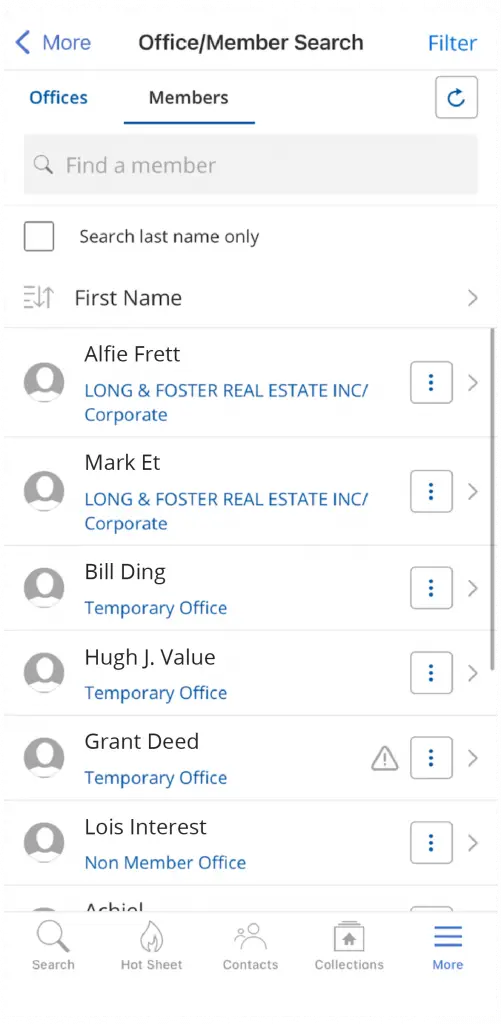
When you type text into the Search box, all available fields are searched by default. To search by member last name only, select the “Search last name only” checkbox in the Members tab.
You can also sort your search results. To sort, tap the Sort icon underneath the Search box and select a sort.
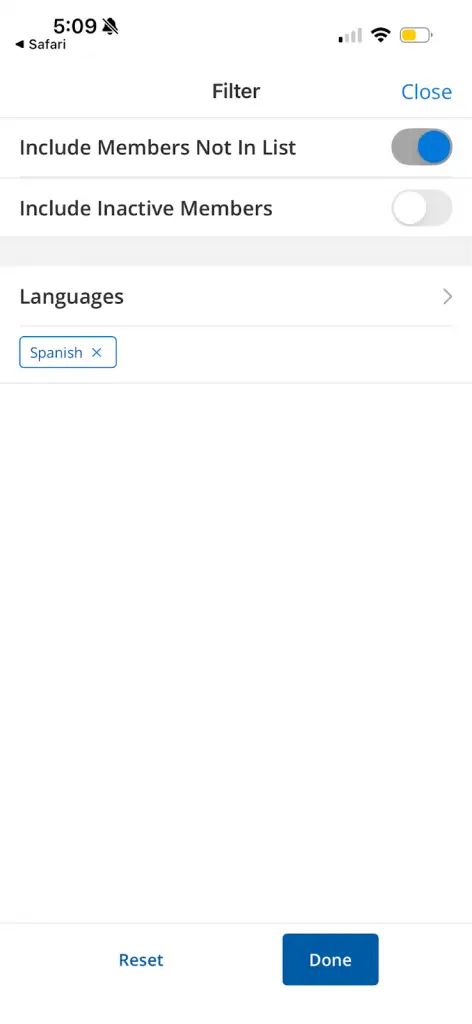
Tap the Filters button at the top right to further customize your search results (members not in list, inactive members, languages).
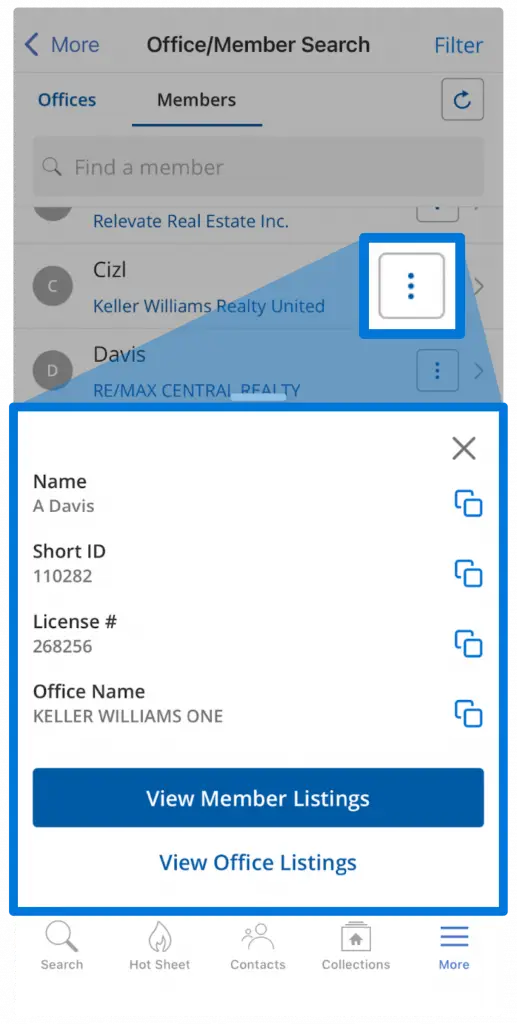
If you are looking to quickly access office or member information, you can tap the three dots to pull up a menu that allows you to quickly copy profile information or view listings.