We’re excited to announce our new Auto Assistant, a multi-step Add Listing form that you complete prior to moving on to the full listing entry page. Auto Assistant collects data such as property type, property address, geo location, tax data and more, and prepopulates the listing entry form with that information—saving you time and improving data accuracy.
Who gets it?
All Flexmls customers.
Why does this matter?
Auto Assistant saves users time, increases efficiency, and improves data accuracy by having key data from trusted sources pre-populated and completed, before you even start entering data into the listing entry form.
When is this live?
This will be a phased rollout beginning in fall of 2025.
What is changing?
We are adding a multi-step “Add Listing” form that you complete prior to moving on to the full listing entry page. Auto Assistant collects data such as property type, property address, geo location, tax data and more, and pre-populates the listing with that information. With Auto Assistant, agents are still in control of their listing data. As the agent, you make the decisions on autofill options, and you can review and confirm all data before publishing.
Any fields that have rules to conditionally display and aren’t displayed by default will still get pre-populated.
To use Auto Assistant, go to Add Listing in the Flexmls Mega Menu, and complete the following steps:
Step 1: Select Your Property Type
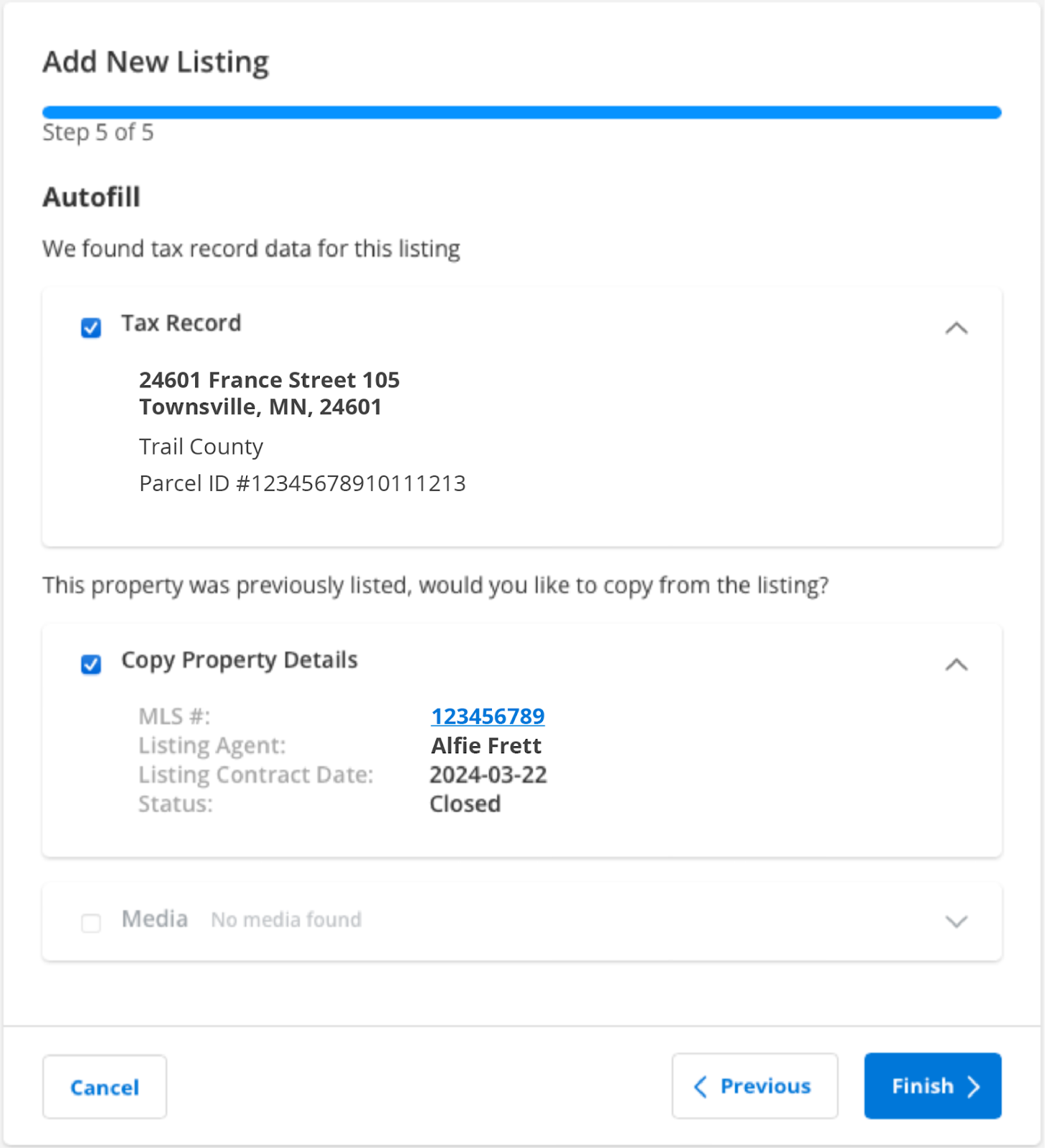
Step 2: Select Listing Agent
If you add listings on behalf of other subscribers in your office, you’ll be able to select the appropriate listing subscriber. If you only add listings on behalf of yourself, this step will not appear, and you’ll automatically be entered as the listing subscriber on the listing.
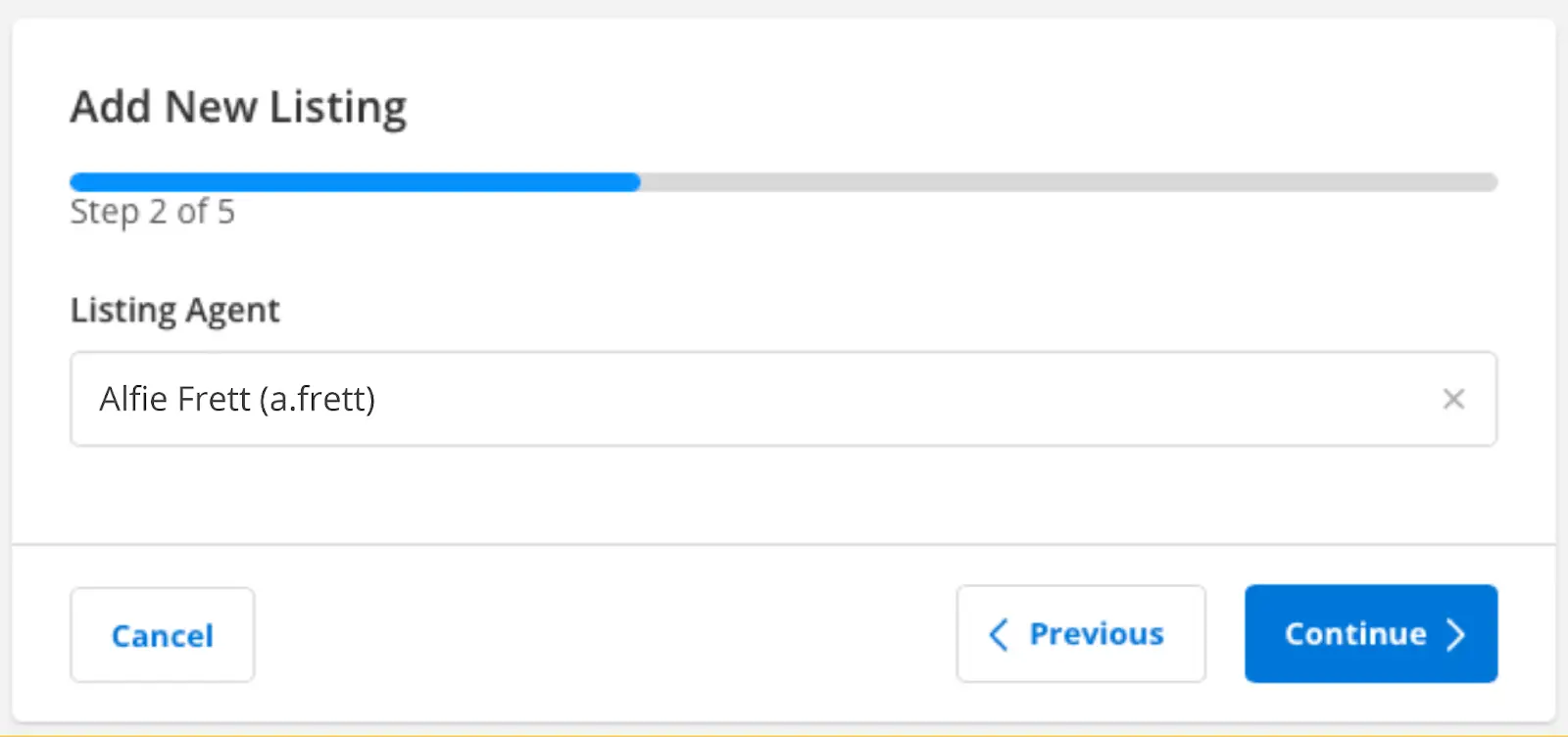
Step 3: Search Your Address
If you can’t find your address, you can enter the address manually using the “click here” option.
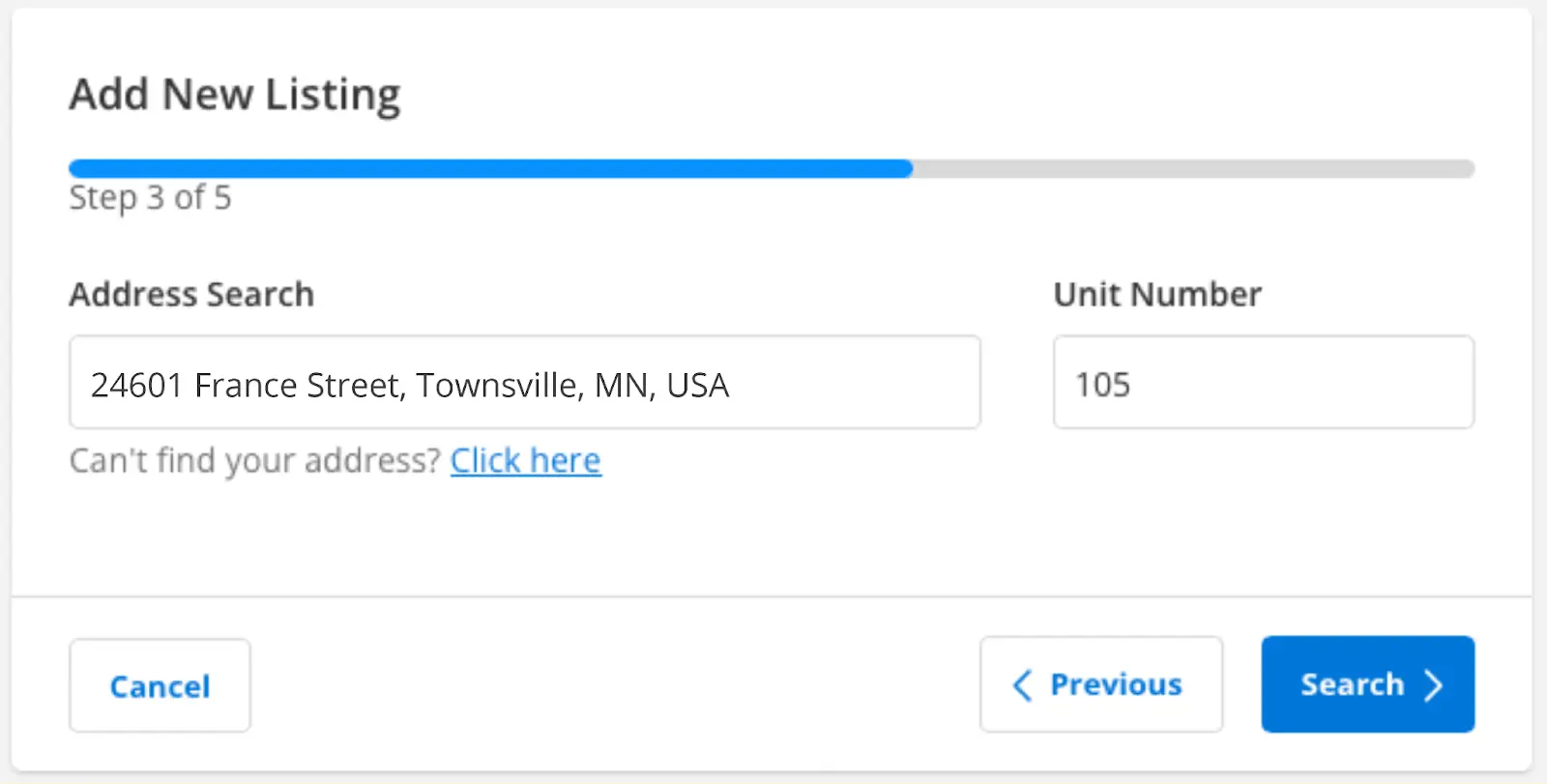
Step 4: Verify Address and Confirm Geo Location
Verify that the listing address is correct. To confirm the geo location, click Use This Location. Click Continue to proceed.
Note: The location of the pin cannot be adjusted. If the displayed address needs to be changed, you can update the location in the Address section of the incomplete listing after you have completed the Auto Assistant steps.
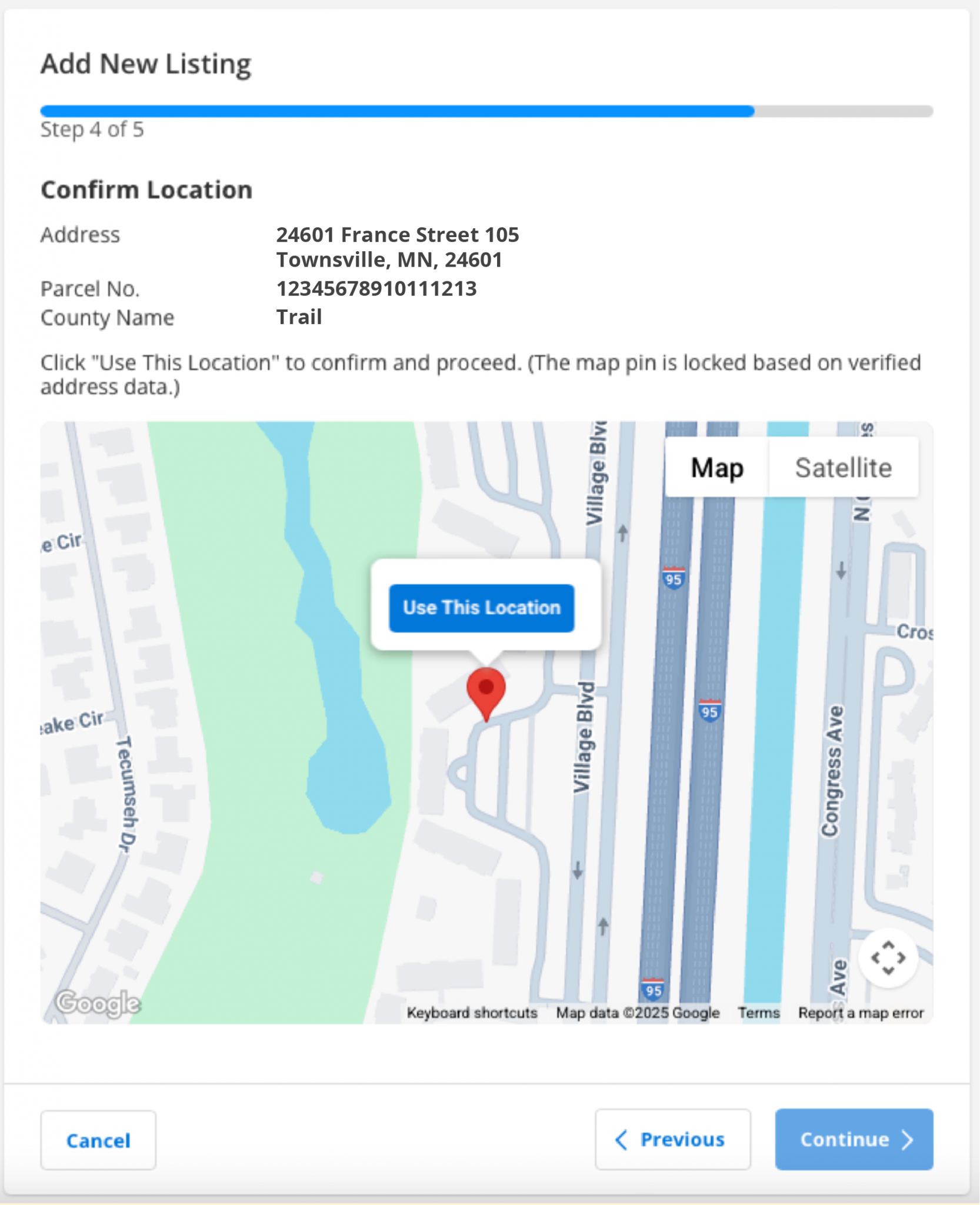
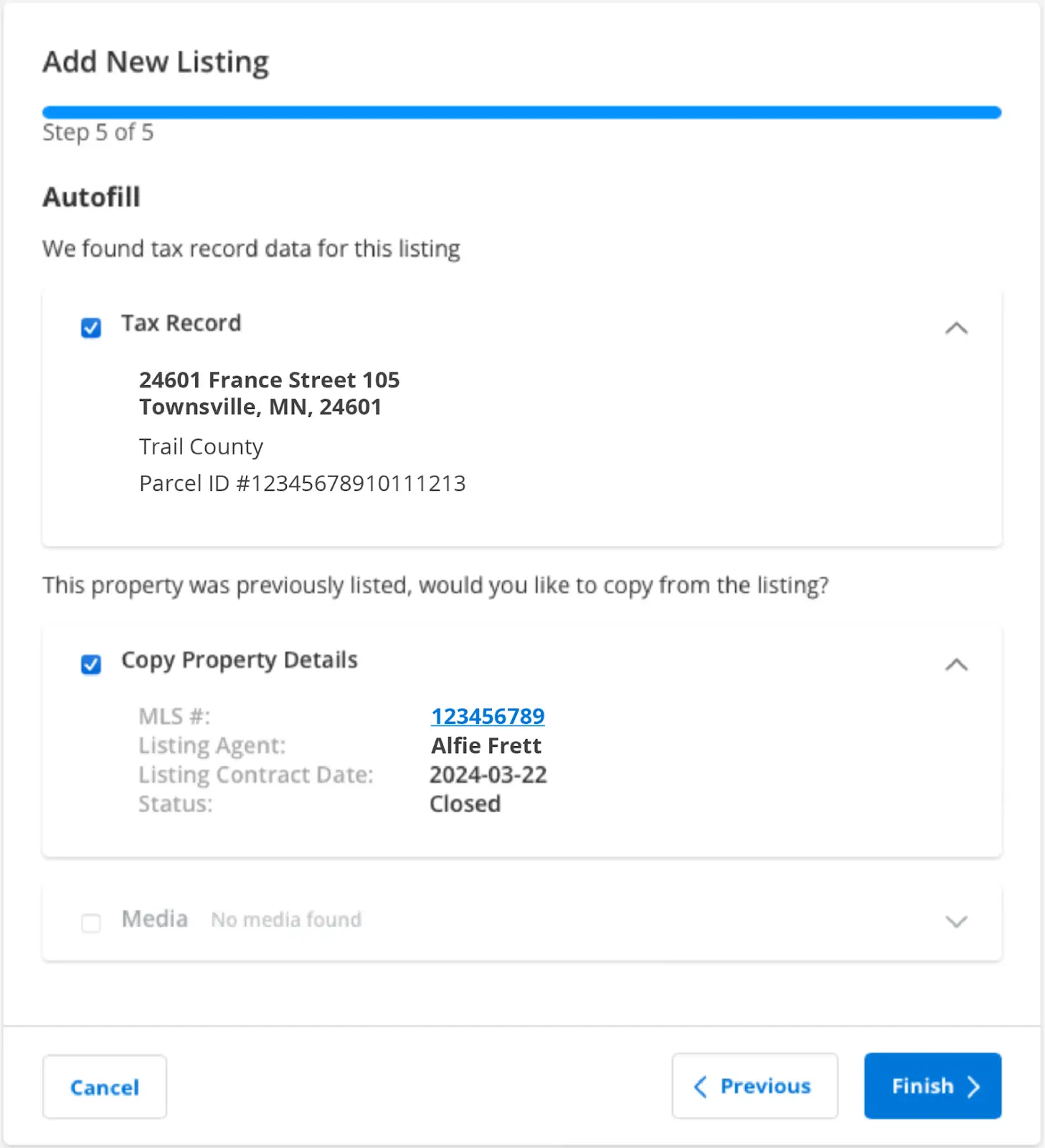
Step 5: Select Data to Autofill
This step will find tax data (if your MLS integrates with a tax vendor) and previous listing data (if allowed by your MLS) to autofill to your new listing.
If Auto Assistant detects a previous listing and tax data, and if you have selected both options, the tax data will take precedence and pre-populate any duplicative information. If allowed, under “Copy Property Details” Auto Assistant will detect the most recent off-market listing, and you can use this listing to autopopulate listing data. If you want to see the listing details that will be copied over, you can view the previous listing information by clicking on the MLS # link.
Step 6: Finish Listing
Click Finish. Your listing will save as an incomplete listing. Open your listing, and see many fields pre-populated!
Don’t forget – the agent is always responsible for checking the accuracy of the data, regardless of the source! Be sure to review any auto-populated data before publishing.