Entering a listing is a time-consuming process, with many components and fields to complete. With Auto Assistant+, you get a powerful enhancement designed to save you time and improve the quality and reliability of your listing data. Auto Assistant+ contains an arsenal of AI features including AI-generated remarks for your listings and AI-detected photo features that can be auto-populated into your listing fields.
Who gets it?
Auto Assistant+ is available to MLSs that have enabled this premium feature.
Why does this matter?
Auto Assistant+ leverages the power of AI, enabling you to more quickly and efficiently complete your listings.
When is this live?
Your MLS will communicate the launch date for this feature.
What is Changing?
AI-generated public remarks are now available for your residential listings (lease, sale, income). Creating compelling listing remarks can be time-consuming, and knowing where to start isn’t always easy.
Auto-Populate AI-Detected Listing Features

Upload your listing photos.
Go to the Photos section in the listing input form and add your photos.
Note: You need to upload at least five photos in order for Auto Assistant+ to begin detecting features from your photos.
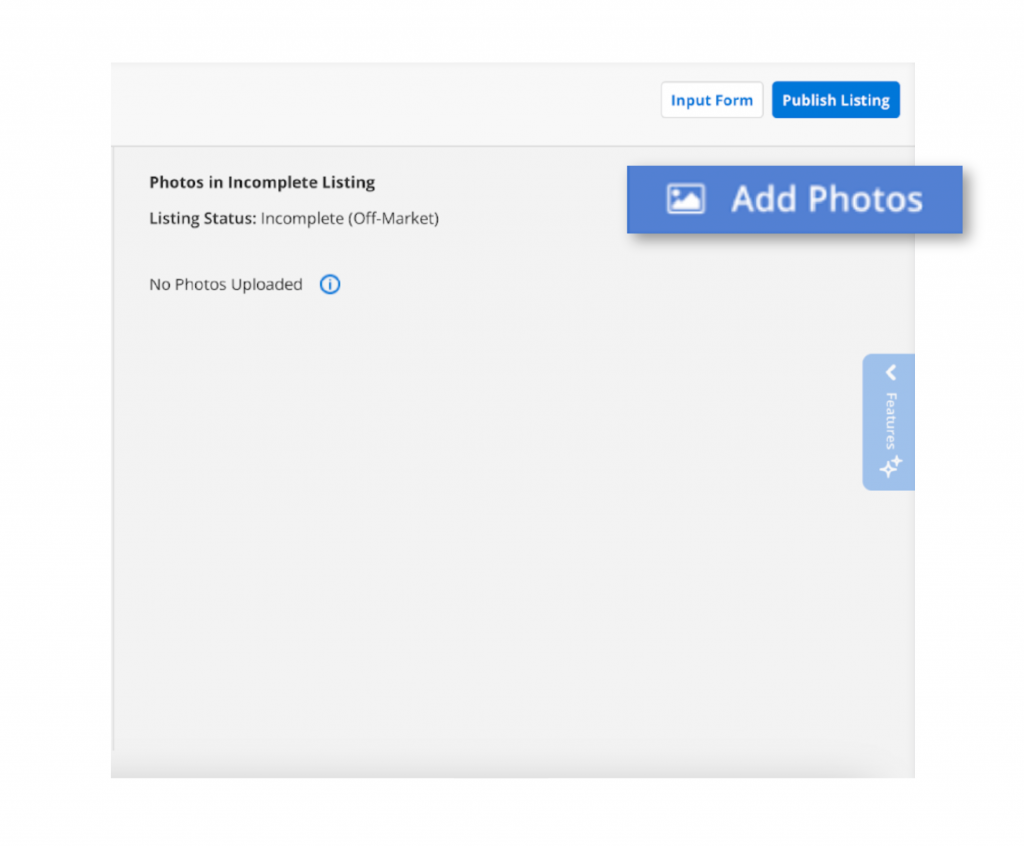
Confirm the use of AI-detection.
Once your photos have been uploaded, a disclaimer window appears. Click “Accept” if you would like to continue with the feature.
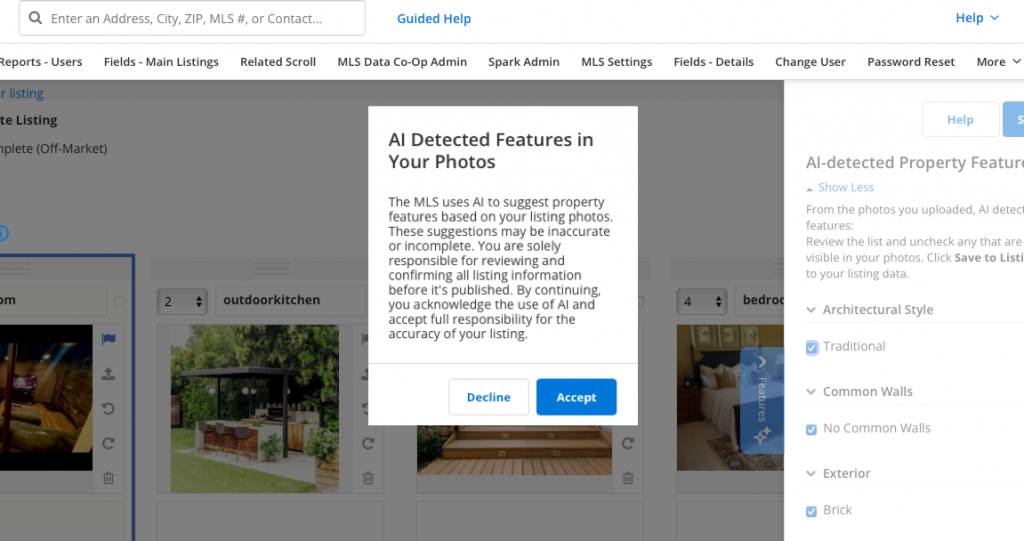
*This message may vary depending on your MLS.
Note: If you click “Decline,” you will not be able to use Auto Assistant+ for that listing. However, you can still use Auto Assistant+ for any other listings you create.
Review the AI-detected features.
Once Auto Assistant+ has scanned your photos, you will see a panel showing what AI-detected features are ready for you to review. Uncheck any features that are inaccurate or that you don’t wish to include in your listing.
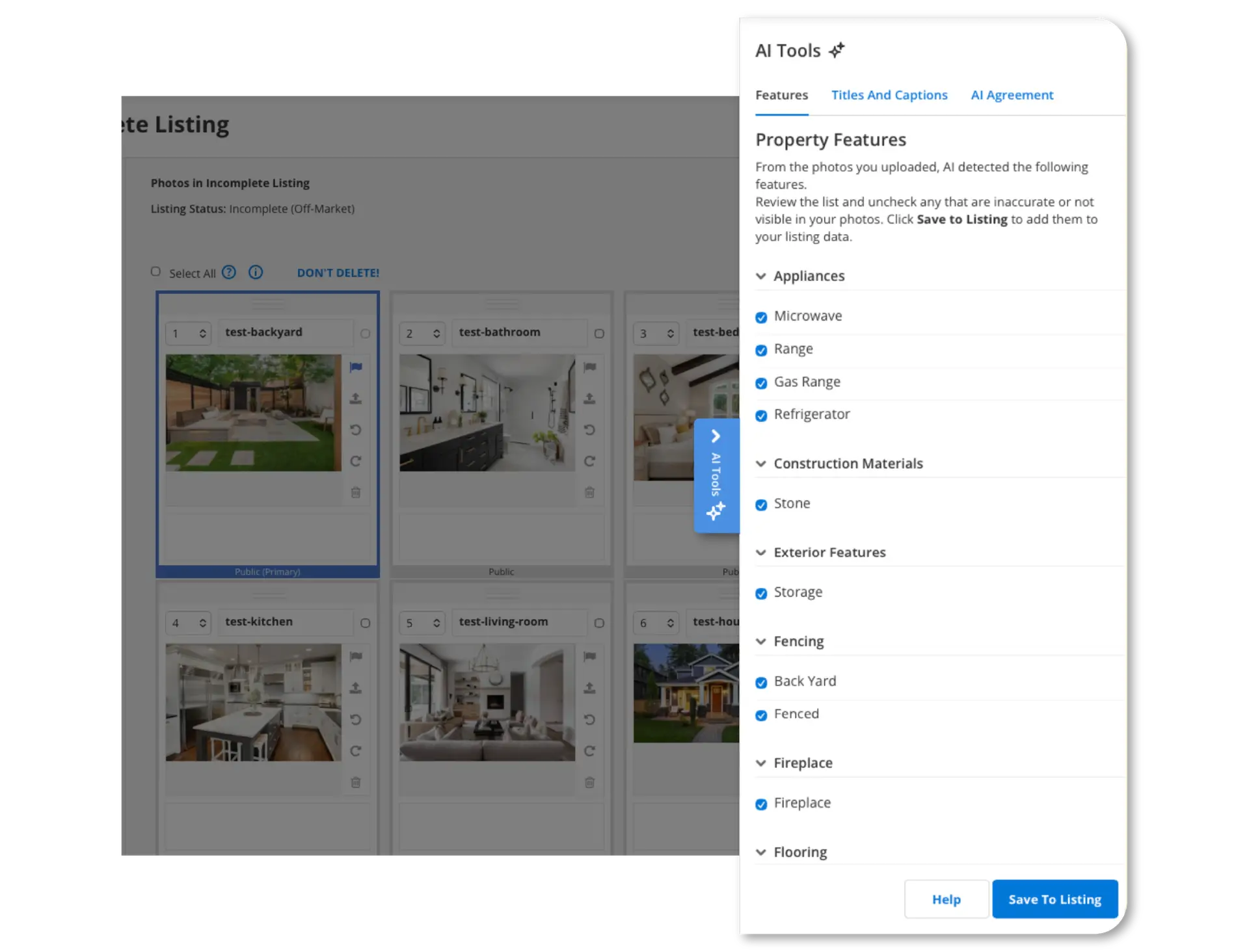
The AI-detected features correspond to the detail fields set by your MLS.
Save your selections to your listing.
Once you have finished reviewing the data and making any changes to your selections, click “Save to Listing.” Once you save these changes, you will see a confirmation message notifying you that your selections from the AI photo-detection have been autofilled in the listing input form.
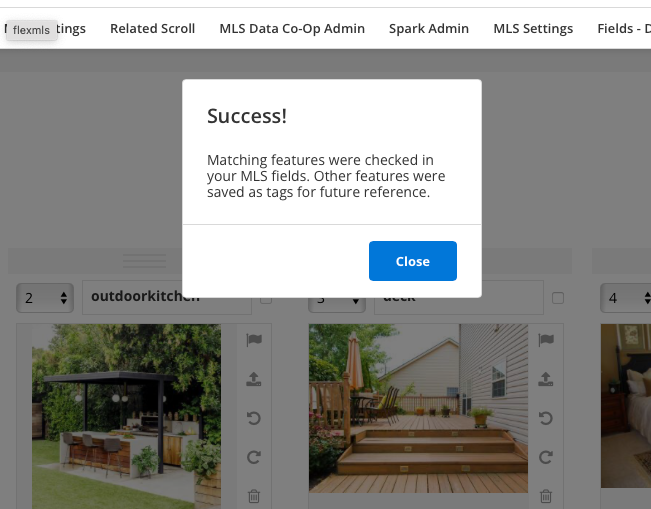
Like magic, your listing data is autofilled!
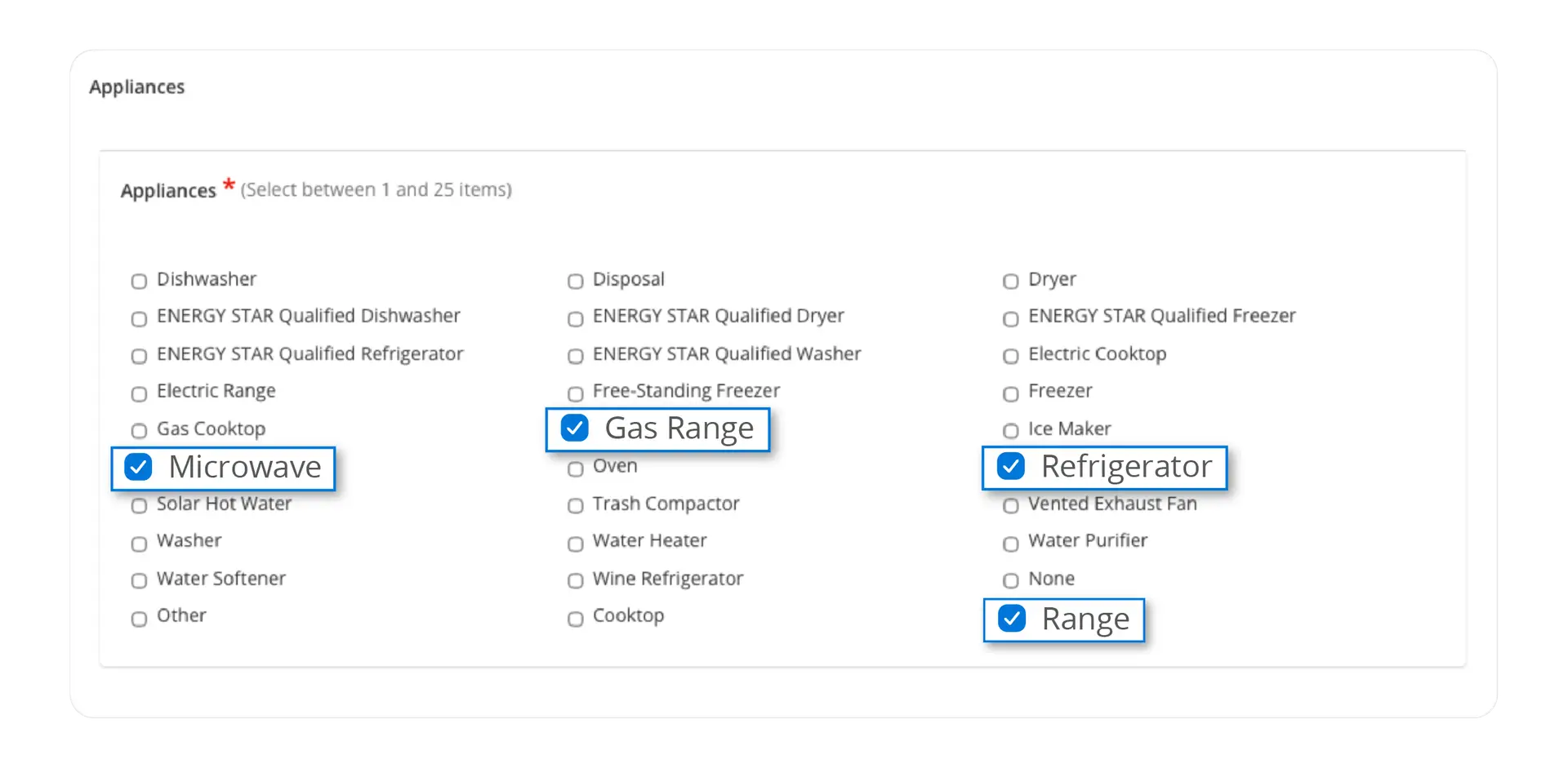
Photo Titles and Captions
Instead of publishing your listing with default photo titles like IMG_3419, you can now use AI to generate photo titles and captions, giving your listing more depth and data with no extra work.
To use AI-generated photo titles and captions, start by uploading at least five photos to your listing. Once you’ve uploaded the minimum required photos, Auto Assistant+ begins to work automatically.

Click Accept in the disclaimer that pops up. Then, click the AI Tools panel, where you can view the suggested photo titles and captions under the Photo Titles and Captions tab.

You can select or deselect any of the suggestions, and once you save them to your listing you can edit any of the suggestions to your liking. If you delete a listing photo, the corresponding title and caption will also be deleted.

Once you have finished making your selections, click Save to Listing. You’ll see all your photo titles and captions populated to your listing photos!

Note: You can only run the AI-generated photo titles and captions once for any given listing.
AI-Generated Remarks
If your MLS is using the new Flexmls Listing Maintenance module, you have access to our AI-generated remarks. When entering a listing, complete the majority of the required fields first. Then, navigate to the Public Remarks section, review the AI Property Description Disclosure, check the acknowledgement box, and click “Generate with AI.” Flexmls will create a listing description using the data from relevant fields (beds, baths, waterfront features, etc.) to help you bring your listing to life.
Each listing includes up to 5 versions of AI-generated remarks to help you quickly and effortlessly create attention-grabbing property descriptions. You can easily edit the AI-generated remarks to say exactly what you want to say.
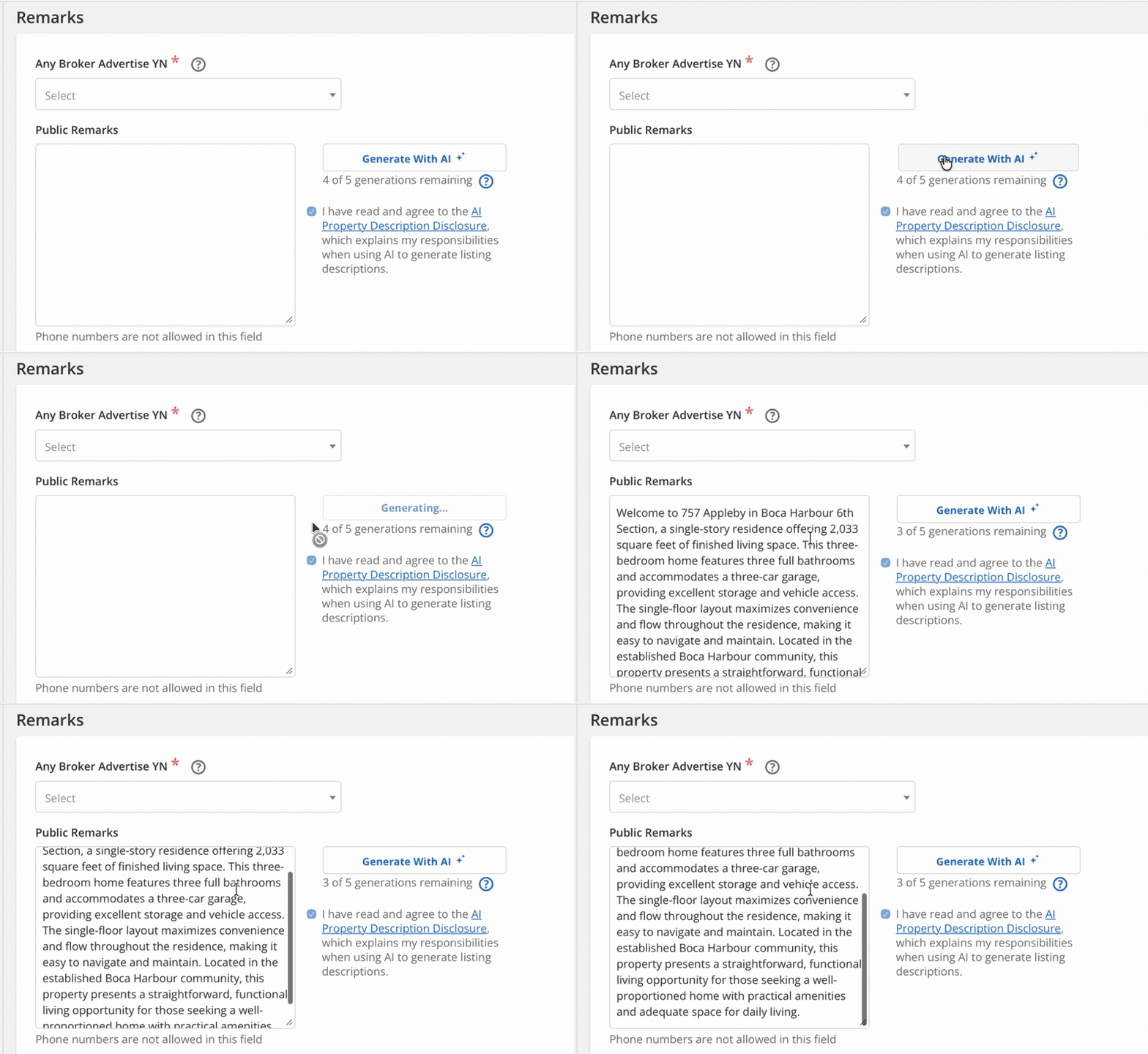
Keep in mind that any existing text you have entered into the remarks section will be overwritten when you generate remarks with AI—whether it’s your own text or AI-generated text.
Frequently Asked Questions:
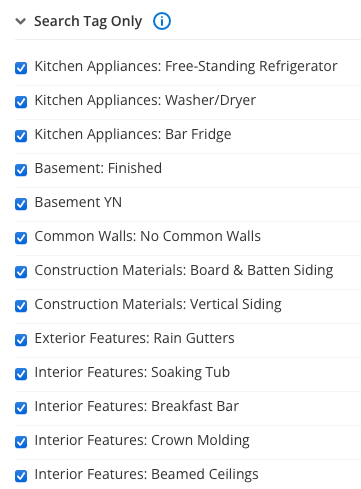
What’s “Search Tag Only”?
Some features that Auto Assistant+ detects may not match an existing MLS field. You’ll still see them listed under the Search Tag Only category so they can be used in the future for smarter search tools that Flexmls is building.
Can I re-run Auto Assistant+ if I upload more photos to my listing?
No, the Auto Assistant+ detection process runs only once per listing. Once it has run, it will not run again regardless of how many additional photos you upload.
Do I have to upload the minimum five photos all at once?
No. You can upload less than five photos and come back the next day to upload the rest. Once you’ve uploaded at least five photos total, Auto Assistant+ detection will begin.
Don’t forget – the agent is always responsible for checking the accuracy of the data, regardless of the source! Be sure to review any auto-populated data before publishing.