Are you using ChatGPT and Claude to help you speed up your real estate workflows? If yes, we are excited to share that the Flexmls Model Context Protocol (MCP) server is now available to our Flexmls users. This server allows you to securely connect your Flexmls user data to AI assistants such as Claude and ChatGPT. By connecting to the server in this way, you can ask questions about market statistics, listing searches, and your own listings directly in the AI assistant of your choice, without having to switch between applications.
Who gets it?
Any Flexmls users whose MLS has enabled the MCP server.
Why does this matter?
The MCP server allows you to interact with MLS data in a more intuitive and flexible way, giving you faster access to trusted data directly from your AI assistant.
When is this live?
April 14, 2026. However, it is only available if your MLS has enabled it.
How do I enable the MCP server?
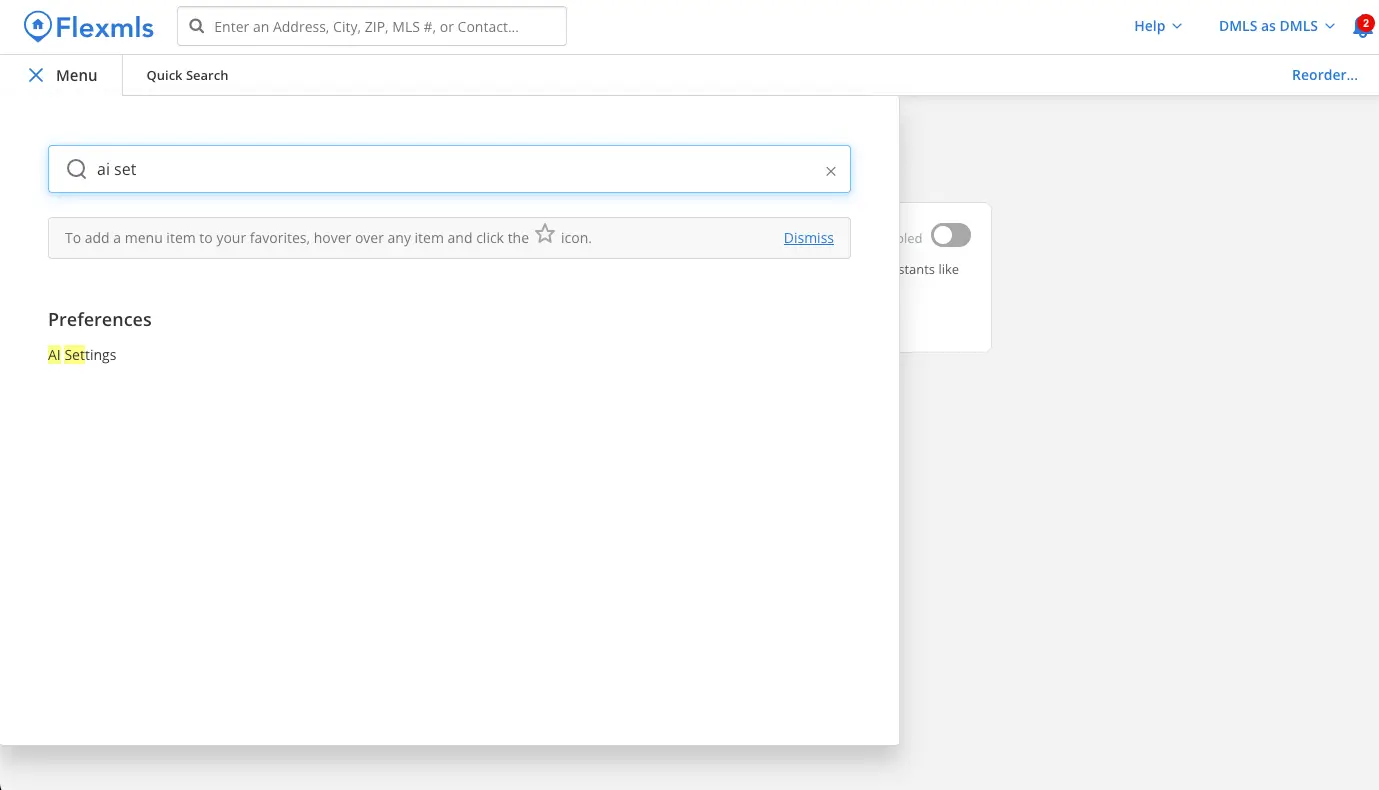
Once your MLS enables the MCP server, you will see the AI Settings item in the Flexmls menu.
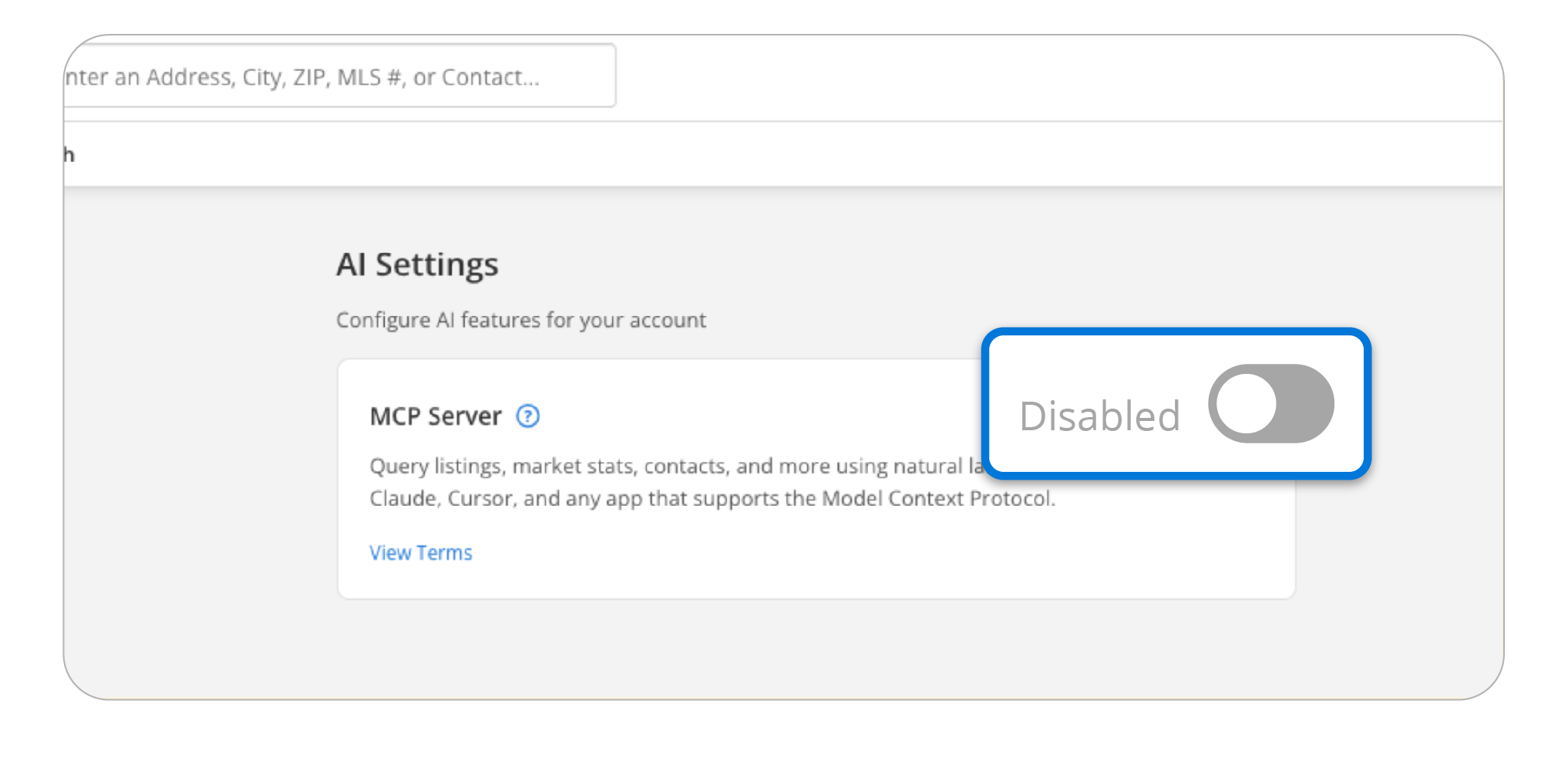
Toggle the setting on to enable it.
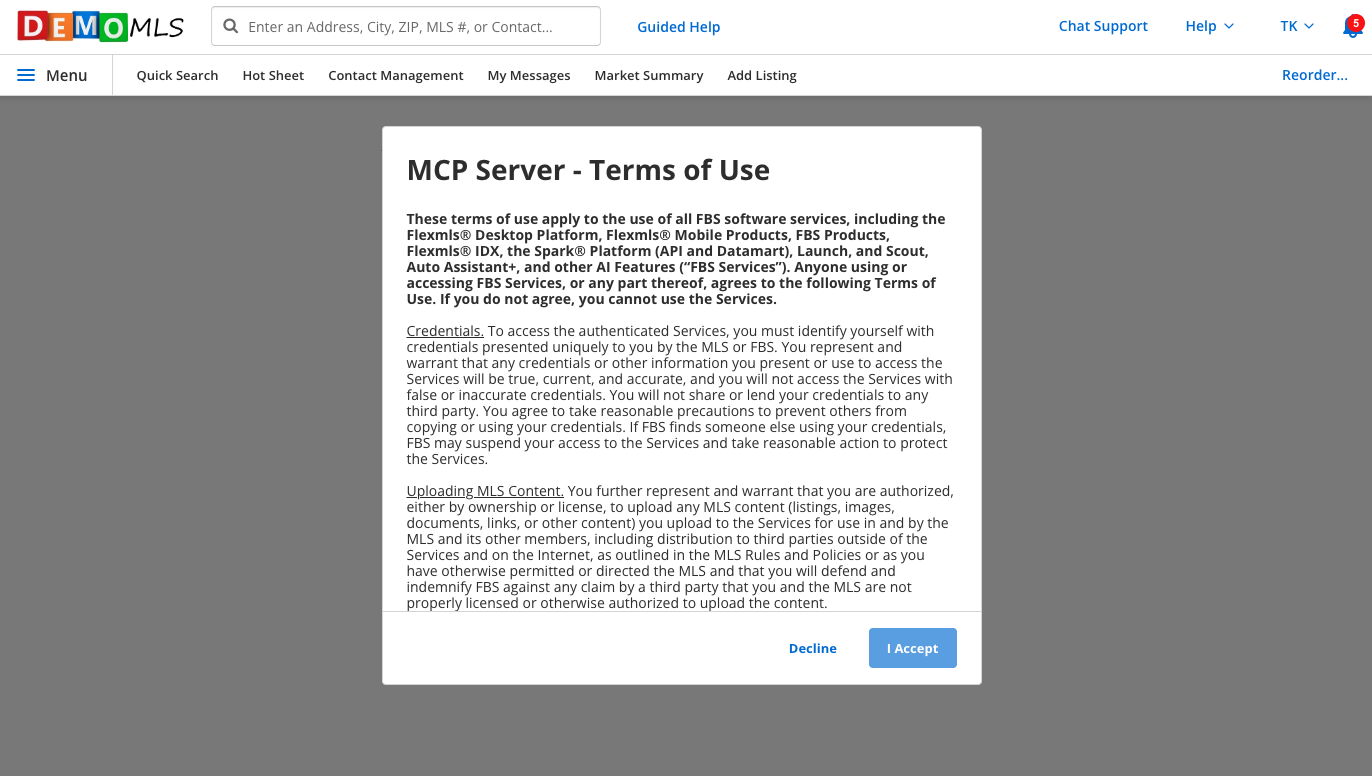
Once you enable it, you must accept the same Terms of Use agreement before using the MCP server.
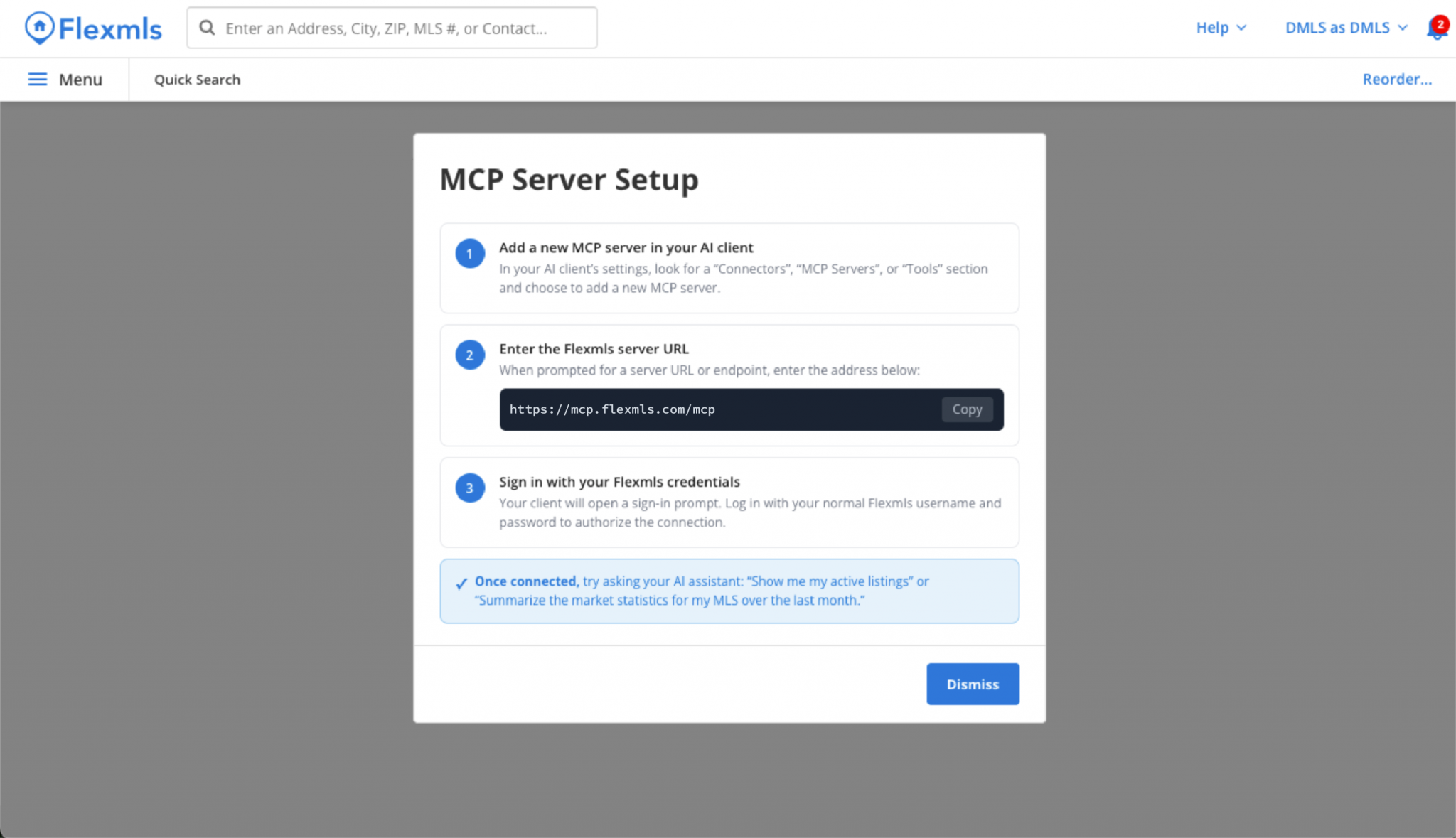
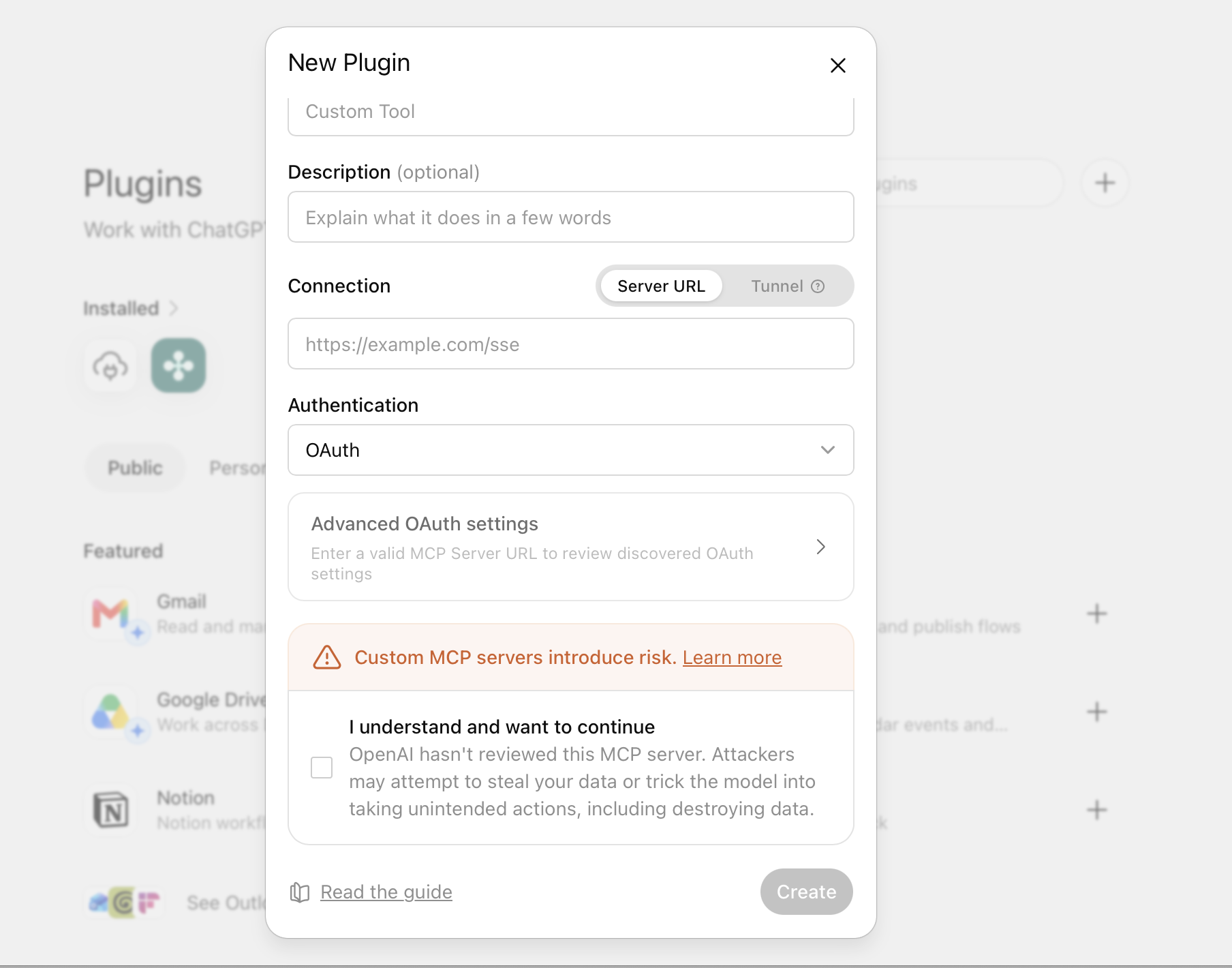
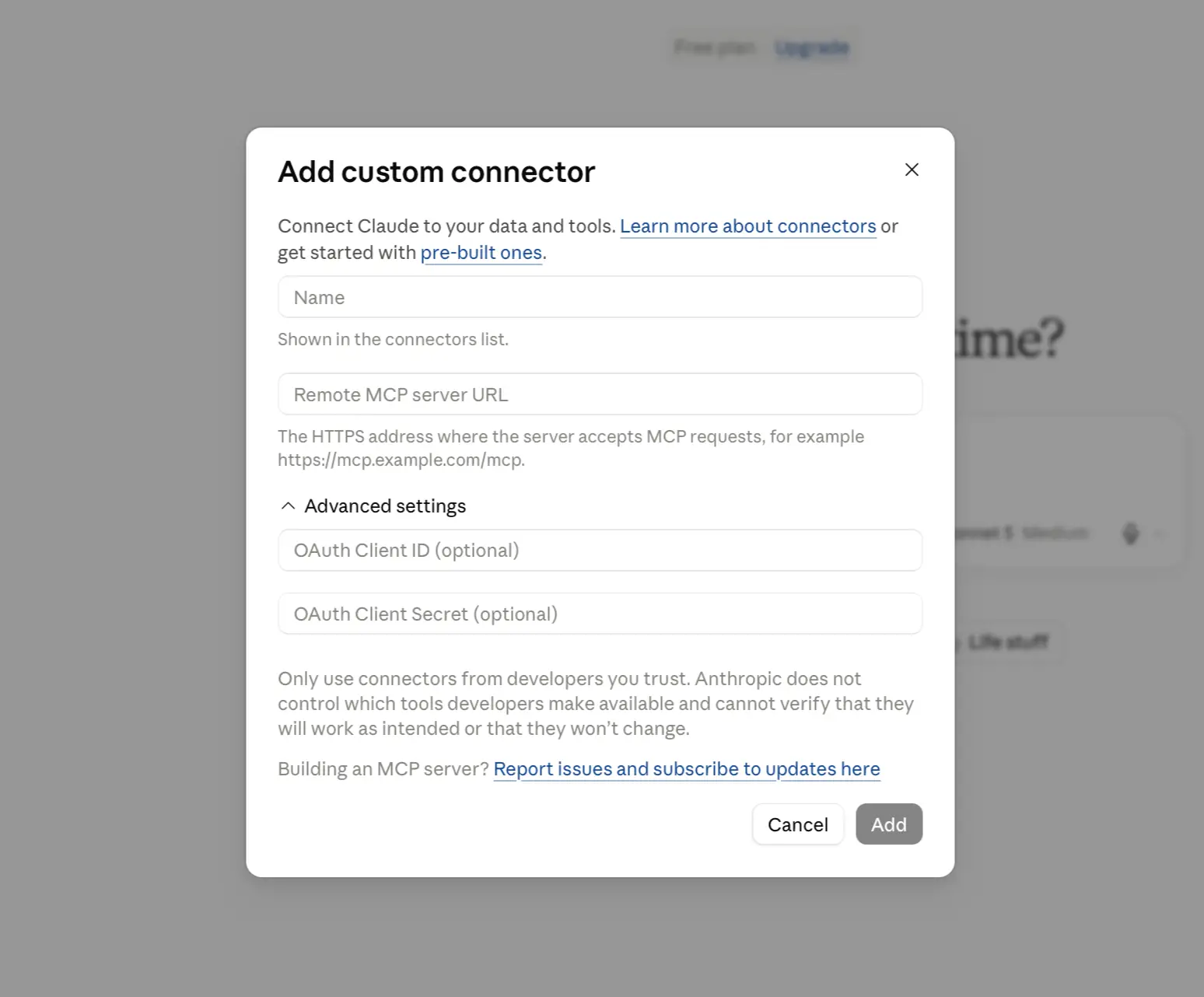
After accepting, a setup guide shows you how to connect your AI client of choice. You will be walked through the following steps for setup:
- Add a new MCP server in your AI client: In your AI client’s settings, look for a “Plugins”, “Connectors”, “MCP Servers”, or “Tools” section and choose to add a new MCP server.
- Enter the Flexmls server URL: When prompted for a server URL or endpoint, enter the address below: mcp.flexmls.com/mcp
- Sign in with your Flexmls credentials: Your client will open a sign-in prompt. Log in with your normal Flexmls username and password to authorize the connection.
Once you complete these steps, your AI client is connected and can query Flexmls data in real time.
Note: You can turn off the MCP Server from AI Settings at any time.
Here’s what the setup looks like in ChatGPT:
And here’s what the setup looks like in Claude:
FAQs
What types of questions can I ask?
Here are some sample questions:
-
- I’m looking for log homes on a lake; can you find me some listings?
-
- My client is looking for 3 bedroom, 3 bath, 3-stall garage houses in Fargo. What’s on the market right now?
-
- Show me the listing photos for [XXXX] listing.
-
- I’m looking for residential listings in [XX city, ZIP code, county] that have expired in the last 30 days.
-
- What open houses are available for [enter address you are interested in]?
What MLS data can be searched?
-
- Market Statistics: Inventory statistics, days on market, price statistics, absorption rate, sales volume, market ratio statistics
-
- Listing Search: Search by property type or using any field in your MLS, get info on open houses, and even view photos.
-
- My Listings: Agent’s own listing tools
No contact information about you or your clients will be shared with the AI assistant.
If you are a subscriber of multiple MLSs you will see data for whichever MLS account you authenticated.
What chat content is stored?
When using third-party AI clients, FBS does not store chat content or data responses. The AI platform’s own privacy policy governs how it handles data it receives.
How accurate is the data from MCP?
The MCP server delivers live Flexmls data accurately, but the AI client’s interpretation, synthesis, and presentation of that data may contain errors. Subscribers should verify AI-generated outputs — particularly listing details, market statistics used in client-facing materials, or any data that informs a transaction — against Flexmls directly.
What AI clients are supported?
Any AI client that supports the MCP standard (Claude Desktop, Cursor, ChatGPT, and other MCP-compatible tools). Claude provides the easiest end-user setup.
Why don’t I see AI Settings in my Flexmls menu?
-
- Your MLS has not enabled the MCP server,
- Your MLS requires individual enablement (reach out to your MLS for information), or
- Your MLS has disabled access to the MCP server.