
Disclaimer: Please keep in mind that the following examples are being conducted with an IDX API key. For private fields and media data, a Private/Broker Back Office API key is required.
Search for a Subscriber by Name
To search for a subscriber, you can use multiple fields such as the MemberEmail, MemberKey or the MemberMlsId. For this example we will use the MemberFullName field. Once the subscriber’s full name is acquired, you will need to apply the $filter parameter to search for that particular subscriber.
Within your ‘New Request’, click on the ‘Params’ tab. You will see a table with columns labeled ‘Key’, ‘Value’ and ‘Description’.
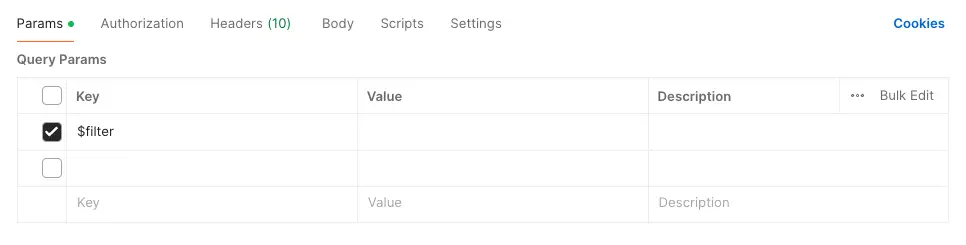
In the ‘Key’ column, enter the ‘$filter’ param and ensure to check the box to the left of the param you entered.

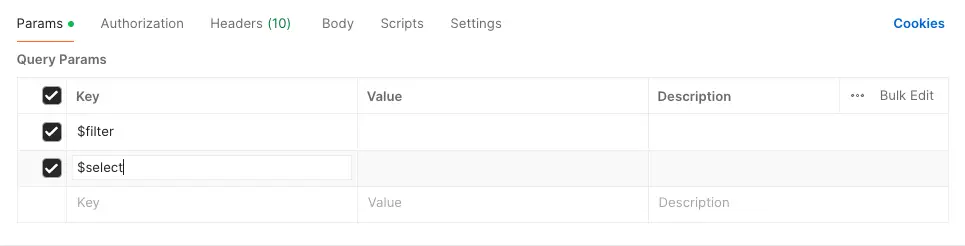
In the next box under the $filter param, repeat the process by entering $select.

Now, in the ‘Value’ column, to the right of the $filter param, enter the following format:
MemberFullName eq ‘Enter_MemberFullName’
For this example, I’m searching for MLS subscriber Michael Scott, so my value will look like this:
MemberFullName eq ‘Michael Scott’

Next, you will want to $select the fields you wish to see.
For this example, we will $select the following fields:
MemberFullName,MemberStatus,MemberKey,MemberMlsId
Feel free to copy and paste the fields above as a ‘Value’ for the $select param.

If everything was entered correctly, Postman will create the following URL

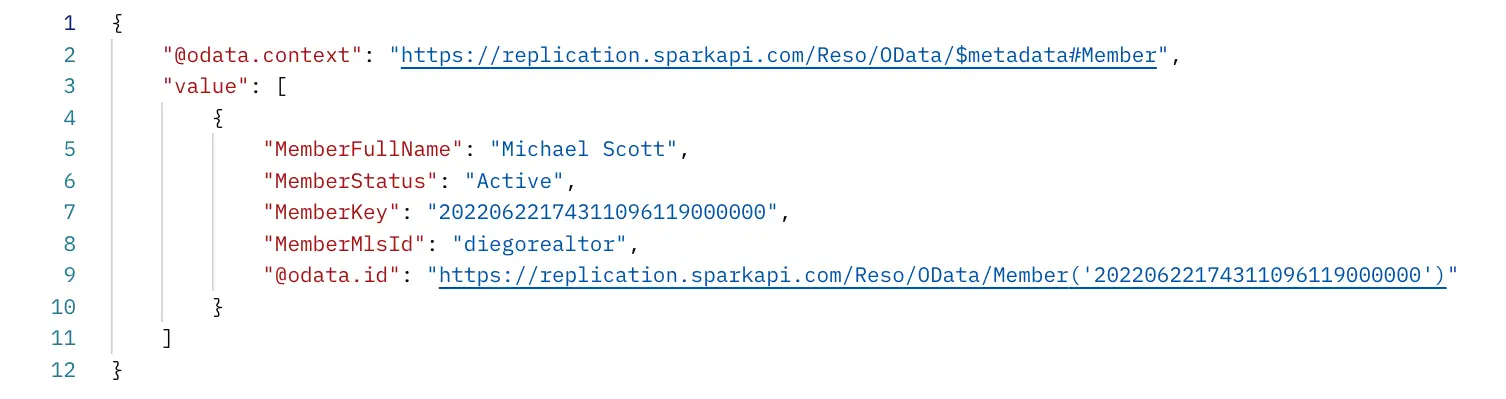
The results in your payload should look similar to this.
Search for an Office by Name
Similar to researching for subscribers, to search for an office, you can use a variety of fields. For this example we will use the office name. Once acquired, you will need to apply the $filter parameter to search for that particular office.
Within your ‘New Request’, click on the ‘Params’ tab. You will see a table with columns labeled ‘Key’, ‘Value’ and ‘Description’.
In the ‘Key’ column, enter the ‘$filter’ param and ensure to check the box to the left of the param you entered.
In the next box under the $filter param, repeat the process by entering $select.
Now, in the ‘Value’ column, to the right of the $filter param, enter the following format:
OfficeName eq ‘Enter_OfficeName’’
For this example, I’m searching for office named ‘Dunder Mifflin Office’, so my value will look like this:
OfficeName eq ‘Dunder Mifflin Office’

Next, you will want to $select the fields you wish to see.
For this example, we will $select the following fields:
OfficeName,OfficeStatus,OfficeKey,OfficeMlsId
Feel free to copy and paste as a ‘Value’ for the $select param.

If everything was entered correctly, Postman will create the following URL.

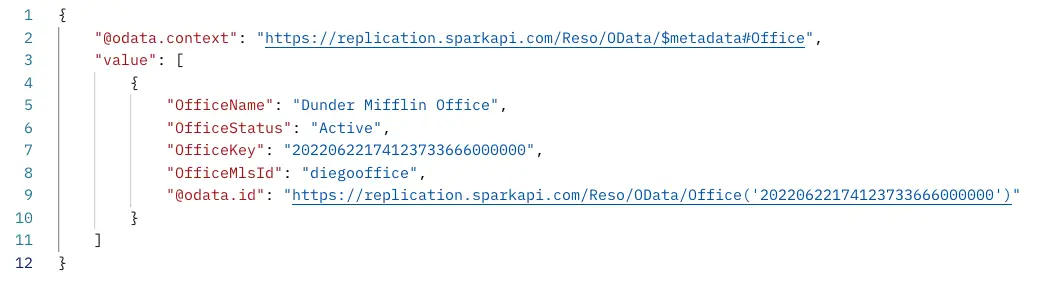
The results in your payload should look similar to this.